

Guide
How to use the app
From install to your first play, step by step.
Install the app from the download page, open it and use search or filters to find a title. Open a title to play it, and use the download option where available to watch later without a connection.
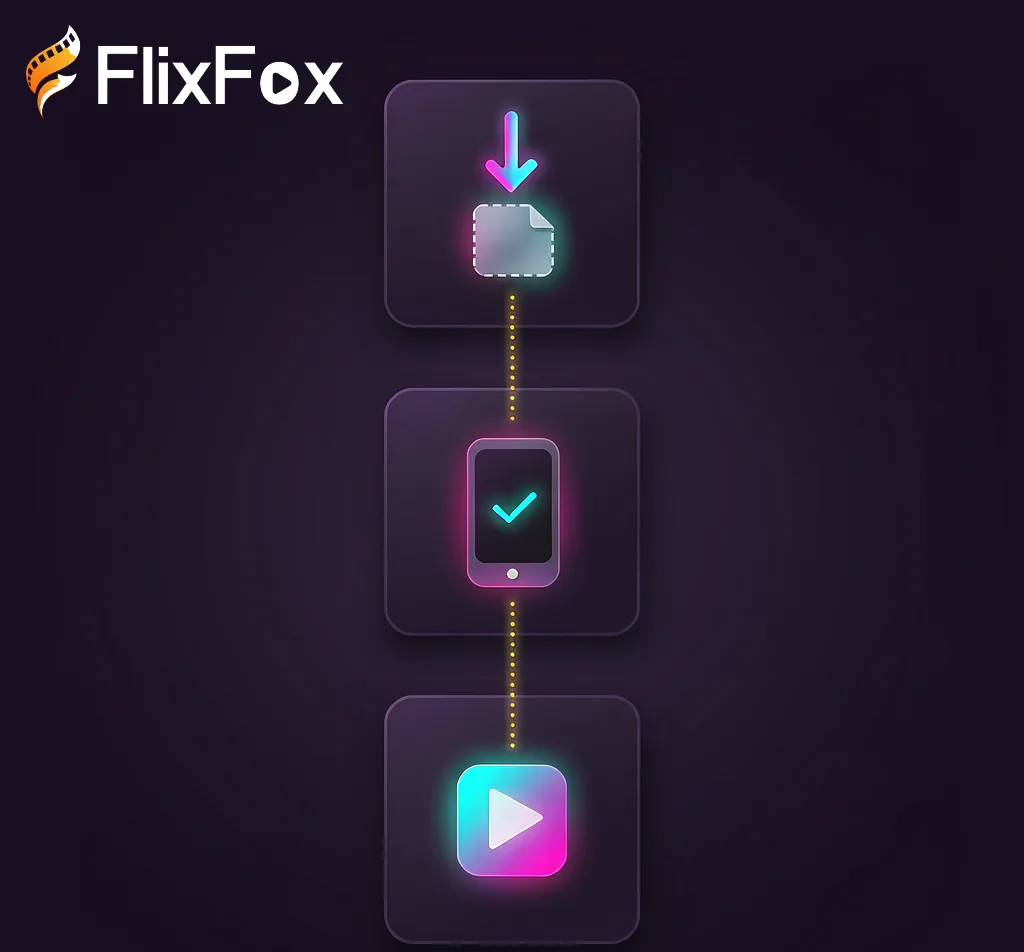
From install to your first play.
Open the Download page on the Android device, install the phone build or the TV build, then launch the app and let it finish starting. The bar at the bottom holds Home, Find, TV, Download and Me, and playback begins from Home.
Find a title, then keep it.
Use the search box or the row on top — Home, Shows, Movie, Anime — to narrow the catalogue, tap a poster and press PLAY. To come back later, add the title with “+ List”, or open the Download tab and save it for offline viewing.
Update without losing your library
Install a newer APK over the existing app. Removing the app first can delete saved titles and settings. Check the changelog for what changed, and use the download page if no in-app update prompt appears.
Quality and data use
Playback adjusts to your connection to keep video running. If the picture softens on a slower network, you can choose a lower quality in the player to save data. A stable connection gives the most consistent result.
Install in three short steps
First, open the download page on the device you want to use. Next, choose the phone or TV file and approve the install prompt. Finally, open the app and check that search and playback work before you sign in.
Frequently asked questions
- How do I download FlixFox?
- Tap Download on this page, install the file, and open the app. The Guide page walks you through setup on your phone or TV. Use only the official links on this site.
- Why does the picture quality change?
- The app adjusts quality to your connection so playback keeps going instead of stalling. A stable connection gives the clearest picture, and you can pick available quality options in the player.
- Why is the app installed from an APK?
- The app is distributed as an APK, so you can install it directly on a supported Android device. Use the download link on this page, review the permissions shown during installation, and keep your device's security settings on.
- How do I update without losing saved titles?
- Install the newer APK over the existing app instead of removing it first. Saved titles and settings stay with the app on the device. If an in-app update prompt appears, follow it; otherwise use the download page.